Give your people a voice
A statically-generated site doesn't need to be difficult to manage.
Say goodbye to Git, command-line tools and raw Markdown editors, and hello to an interactive, mobile-friendly editing experience you can roll out to your whole team.
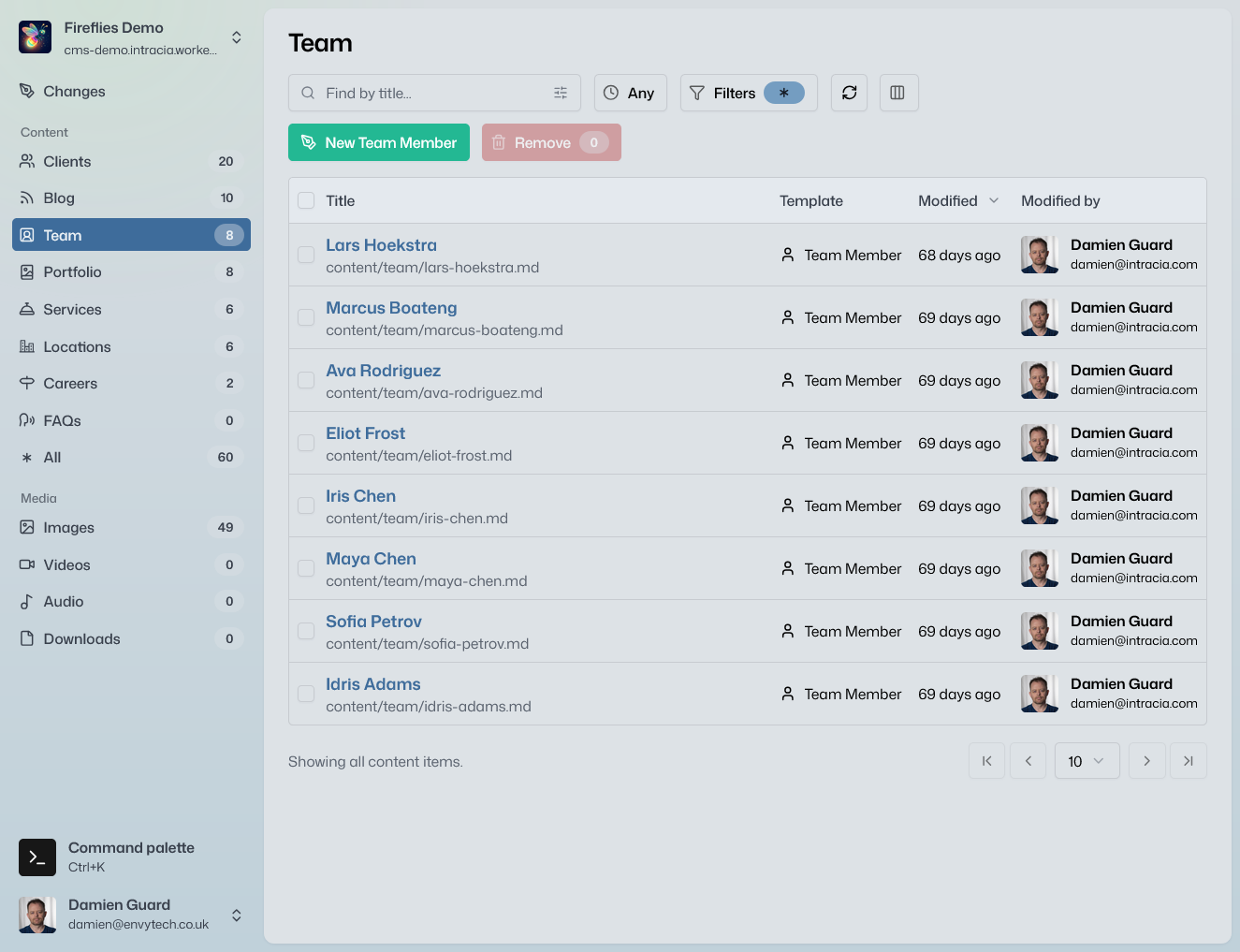
The editorial workspace, backed by the content and history already in your repository.
Content editing
A visual editor with pre-defined styles and fields.
Writers work in a structured workspace over the files already in your repository. The source is still there, one tab away.
Frontmatter as form fields
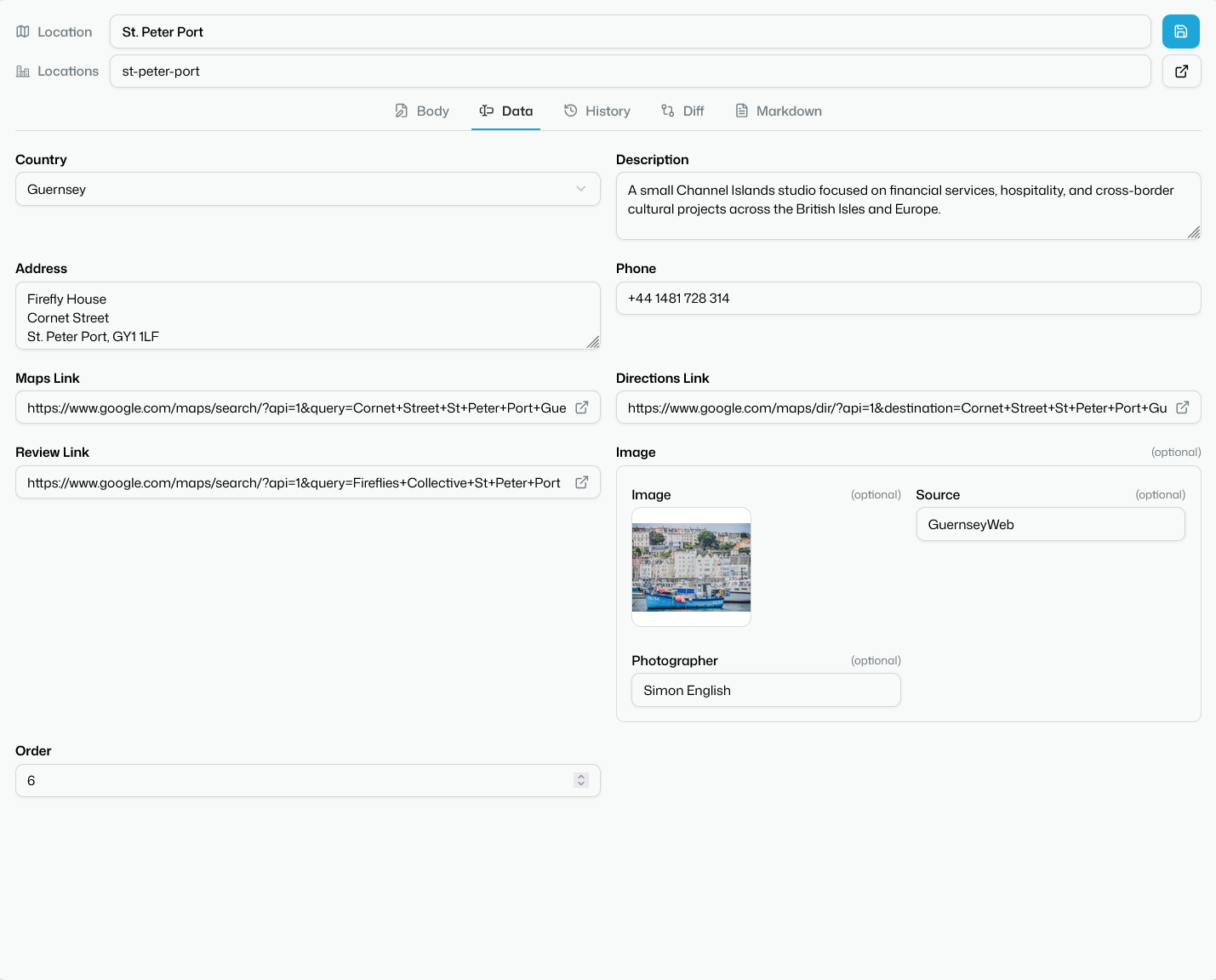
The Data tab is generated from the shape already in the repository. Writers fill in headlines, dates and choices — not YAML.
- ✓Dates, numbers, booleans, URLs and enumerated choices, labelled
- ✓Images, arrays, nested objects and references to other content
- ✓The form comes from the template's JSON Schema, not a blank page
Schemas shape and guide the editing form, with publish-time validation applied where supported.
Visual and source Markdown
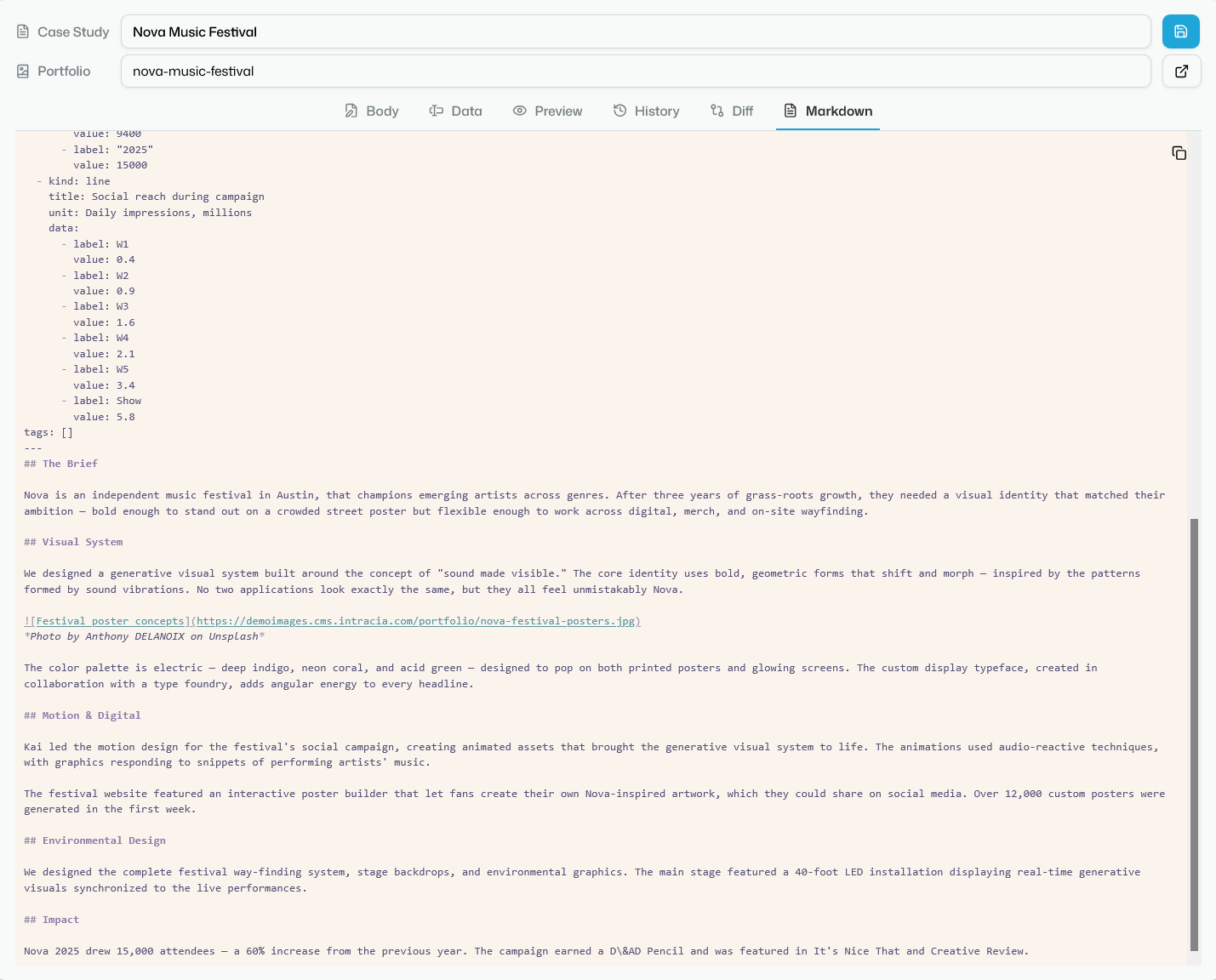
The same file, two views. Writers stay in the visual editor. Anyone who wants the source can open it without leaving the workspace.
- ✓Headings, lists, links, quotes, tables, code blocks and media
- ✓A source tab that shows frontmatter and body together
- ✓Copy the file out as Markdown whenever you need it elsewhere
Preview on the real site
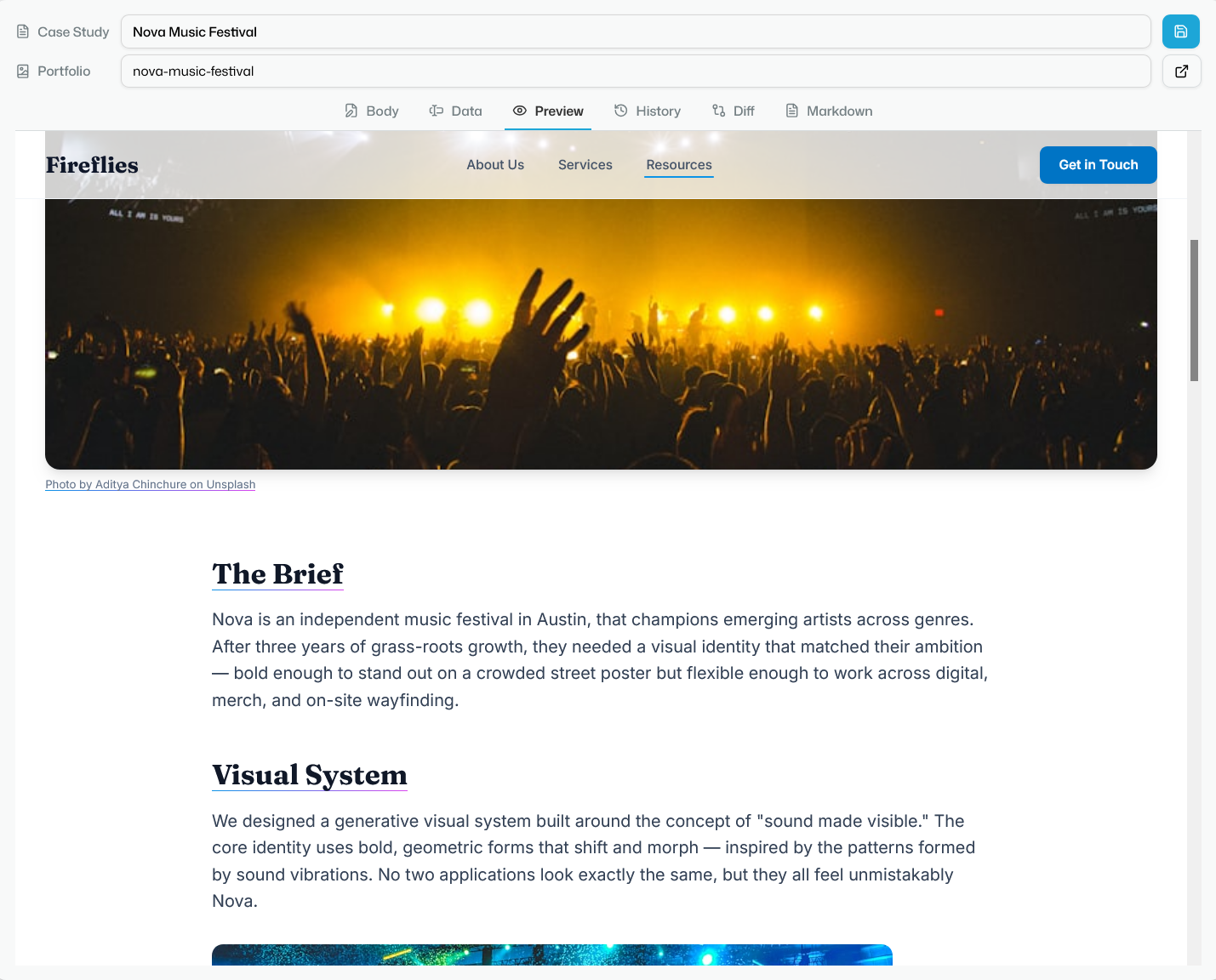
The Preview tab overlays the unpublished draft on the live templates, so writers see the page they are actually shipping.
- ✓Your styles and components, not an approximation of them
- ✓Drafts autosave and never touch the published file
- ✓Body, Data, History, Diff and Markdown stay in one editor
Available for Markdown drafts on Nuxt Content v2 and v3 with the preview integration installed.
Media
A media library at your fingertips.
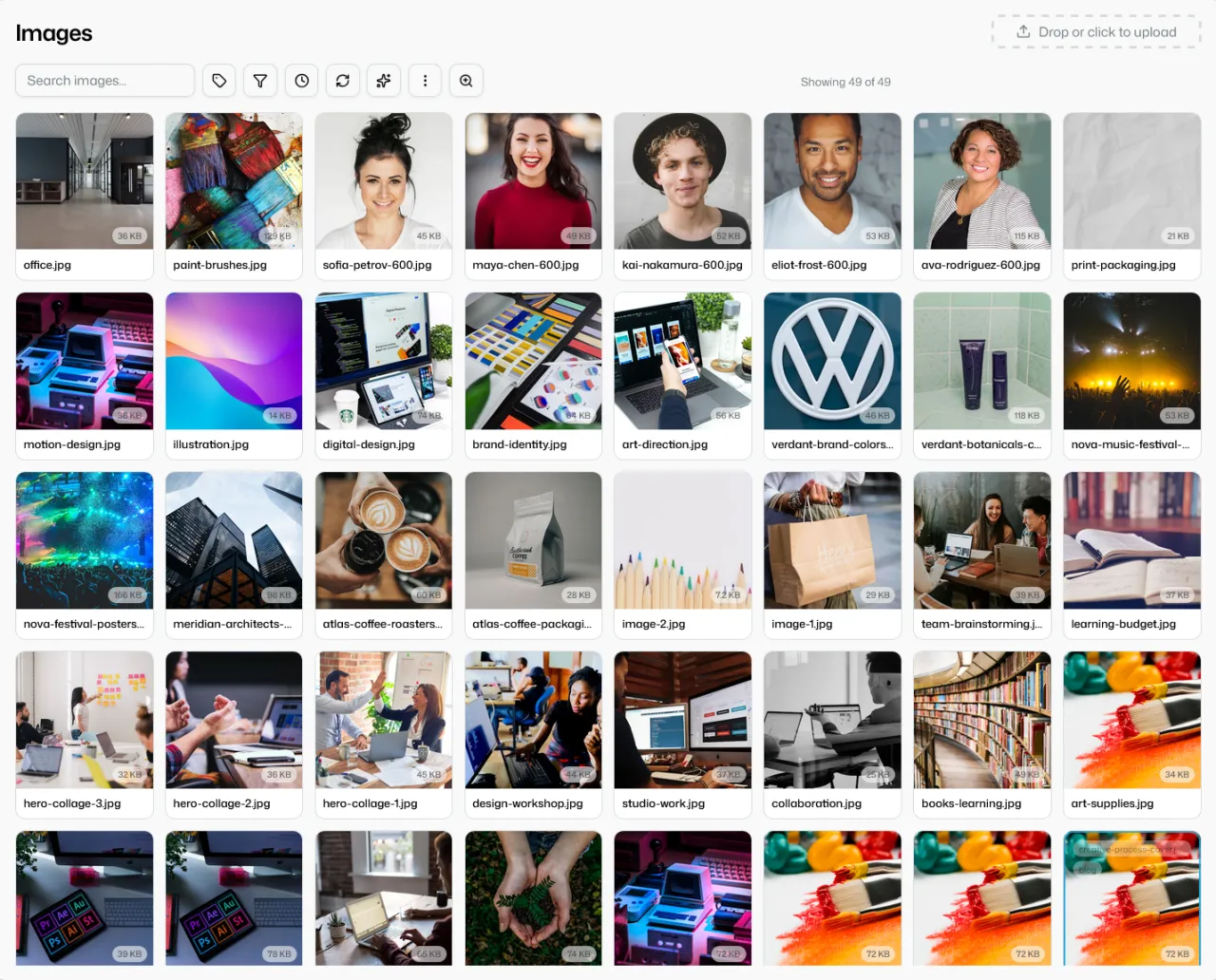
Everything a page needs, in a bucket you own — searchable, tagged, and one click away from the paragraph being written.
Images, video, audio and downloads
A fully integrated media interface lets writers choose and insert images, audio, video and downloads straight into their content, complete with pre-defined alt text. Pick an existing asset by tag or search, or upload a new one on the spot — up to 100 MB per file.
- ✓Images in JPEG, PNG, WebP, AVIF, GIF and SVG
- ✓Video in MP4, WebM and MOV, with a poster frame captured from any moment
- ✓Audio in MP3, WAV, FLAC, AAC, M4A, OGG and Opus
- ✓Downloads as PDFs, listed and linked like any other asset
Connect Cloudflare R2, Amazon S3, Azure Blob Storage, or any S3-compatible store.
Publishing
Review the file. Then ship it through the pipeline you already have.
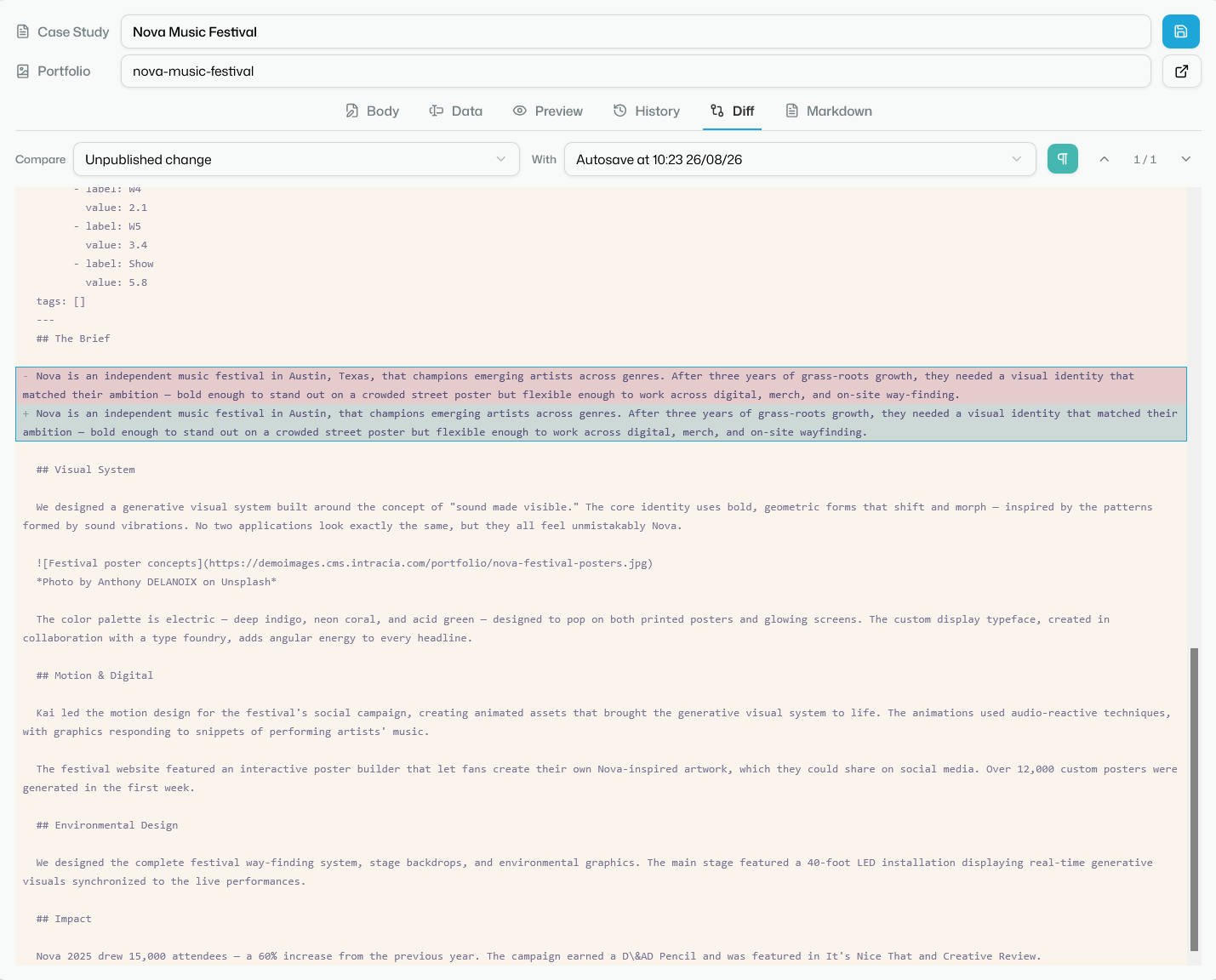
Every unpublished change is a real diff in the file's own syntax. Publish is a Git operation: a commit, a pull request, or a squash-merge.
Complete file diffs
The Diff tab compares an unpublished change against autosaves and history, line by line, before anything ships.
- ✓The whole serialised file, frontmatter and body together
- ✓Additions and removals, with ignore-whitespace and highlighting
- ✓Review costs seconds, not a context switch into GitHub
Commit directly, or open a pull request
Publish is a Git operation you already know how to review. The pipeline you already have builds and deploys.
- ✓Direct to the branch, a pull request, or a squash-merge
- ✓Adds, updates, moves, renames and deletions as real file changes
- ✓Plain pull-request mode hands the final merge to GitHub
Plain pull-request mode hands the final merge to your established GitHub workflow.

Your stack
Nothing of yours moves onto our infrastructure.
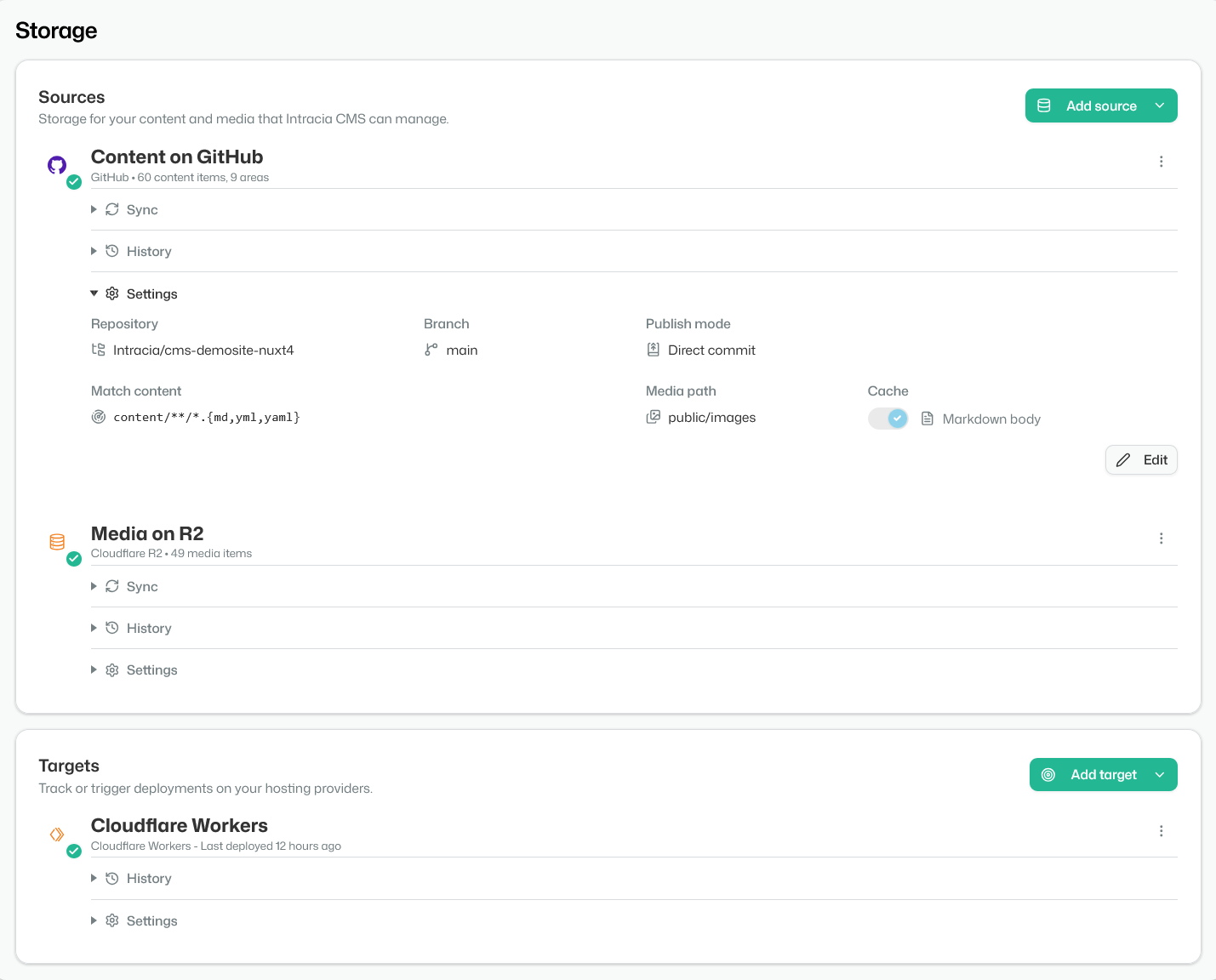
Content stays in GitHub. Media stays in your bucket. The site builds and deploys where it always did. We bring the editing experience, asset management and helpful tools.
Your content
Stays in your GitHub repository
Your media
Stays in a bucket you own
Your deployment
Keeps working on every push
We bring
Editing & asset management
Intelligent setup with AI assistance
Connect your source repository, media bucket and go! Nothing is migrated, rebuilt or moved onto our infrastructure. Just an intelligent adaptation of our editor and tools to your existing content and assets.
- ✓Folders and frontmatter are scanned in place
- ✓Areas, templates and fields suggested from what it finds
- ✓You approve the model before it applies
Getting started
Three steps from your repository to your first published change.
Setup happens once. It reads the repository you already have. Your stack keeps building and serving throughout.
- 01
Connect to GitHub
Grant the Intracia GitHub App access to your repository. It syncs and indexes what is already there, without changing a thing.
- 02
Confirm the model
It proposes areas and templates from your folders and frontmatter. You approve every suggestion before it applies.
- 03
Publish a change
Make the first edit in the workspace. Publish when you are ready: the change goes back to GitHub and your existing build runs.
You stay in control of every AI-assisted change. Review and approve each suggestion before it is used for your model; your content stays private and isn't used to train models. Every AI feature is optional, and you can switch them off for a whole site.
Integrations
Works with the tools that already power your site
Intracia integrates with a variety of frameworks, content sources and media containers, with even more in the pipeline.
Content source
 GitHub
 Connect selected repositories through the Intracia GitHub App, turn their Markdown, YAML and TOML into structured forms, and publish as a direct commit or a pull request with the complete file diff ready for review.
 GitLab
 Bring GitLab projects and subgroups into the Intracia workspace, edit Markdown, YAML and TOML through structured forms, and send finished changes back as commits or merge requests.
 Bitbucket
 Site framework
 Nuxt Content
 Turn Nuxt Content v2 or v3 collections into structured forms and preview unpublished drafts on your real site. Intracia detects your setup and installs the managed preview integration as a single commit.
 Astro
Astro Turn Astro content collections into structured editing forms, using each collection schema to provide the right fields while your site continues to build from the same Markdown and YAML files.
 Docusaurus
 Manage Docusaurus docs and blog posts through structured forms, with sidebar position and metadata presented as clear fields and every change published back to the original Markdown files.
 Eleventy
 Edit Eleventy posts, pages, and whole-file YAML in _data directories through structured forms, then publish them back into the file-based workflow your site already uses.
 Gatsby
 Give Gatsby editors structured forms for filesystem content, then publish the same Markdown and YAML that gatsby-transformer-remark and your GraphQL layer already use.
 Hugo
Hugo Manage Hugo content sections, page bundles, and data files through schema-driven forms. TOML and YAML both round-trip, as frontmatter or as whole files, so a default Hugo project needs no reconfiguring before you connect it.
 Jekyll
 Manage Jekyll collections, posts, and _data YAML through schema-driven forms, with every published change returning to the files your existing Jekyll build reads.
 Next.js
 Manage the Markdown and YAML behind a Next.js site through structured forms, then publish the same files your Contentlayer, gray-matter, or custom content loader already reads.
 VitePress
 Edit VitePress pages through structured forms, including home-page layout blocks and frontmatter, then publish clean Markdown and YAML back to your repository.
Markdown, YAML & TOML sites
 Markdown, YAML & TOML sites
 Connect any GitHub-backed site built from Markdown, YAML or TOML, including Nikola, Lume, Publii, Jigsaw, Zola, and custom generators. Intracia adds structured editing and publishes updates back to the files your build already reads.
Media storage
 Cloudflare R2
 Connect an R2 bucket in your Cloudflare account and manage images, video, audio, and documents from the Intracia media library. Files stay in your bucket, with zero egress fees on reads.
 Amazon S3
 Connect an Amazon S3 bucket in your preferred region and manage images, video, audio, and documents from the Intracia media library using bucket-scoped IAM credentials.
 Azure Blob Storage
 Connect a container in your Azure storage account and manage images, video, audio, and documents from the Intracia media library using your account name and access key.
S3-compatible storage
 S3-compatible storage
 Connect MinIO, Backblaze B2, DigitalOcean Spaces, Wasabi, Scaleway, or another S3-compatible store and manage its media through Intracia using your endpoint, bucket, and credentials.
Deployment monitoring
 Cloudflare Pages
 Connect a Git-integrated Cloudflare Pages project and follow every publish from queued to live inside Intracia. Build logs and clear failure details keep the whole team informed using a read-only API token.
 Cloudflare Workers
 Connect a Git-integrated Cloudflare Workers project and follow every publish from queued to live inside Intracia. Build logs and clear failure details keep the whole team informed using a read-only API token.
 GitHub Actions
 Join the waitlist
Intracia is in early access and we take on one site at a time, so every one gets looked at properly. Say what your site is built with and what's slowing your team down.
Not ready to ask yet? Meet the people building it.
Our founders have worked for
Our founders
The people who build Intracia.

Engineering & Operations
Damien Guard
Damien has spent four decades writing software, most of it on the tools other developers depend on — .NET at Microsoft, the Atom editor at GitHub, SDKs and developer experience at Auth0, and the official MongoDB provider for Entity Framework Core.
View his profile
Marketing & Design
Kerry Guard
Kerry is CEO of MKG Marketing, the B2B SaaS and tech agency she co-founded in 2011, and leads marketing and web design at Intracia. She spends most of her time on the same problem from two directions: how technical products explain themselves to the people who have to buy them.
View her profile